
iPhone object removal is built into Photos
You can erase objects from images on supported iPhones using Clean Up in the Photos app. Clean Up is an Apple Intelligence feature that can remove distracting items from the background of a photo, then fill in the area so the image still looks natural.
It is useful for simple edits such as removing a person in the background, a sign, a piece of trash, a reflection, a shadow, or another small distraction near the edge of a picture.
Clean Up is not a full professional photo editor. It works best when the object is separate from the main subject and the background is simple enough for the iPhone to fill in.
Which iPhones support Clean Up?
Apple says Clean Up works on:
- iPhone 16 models
- iPhone 15 Pro
- iPhone 15 Pro Max
- newer Apple Intelligence-compatible iPhone models
The iPhone also needs iOS 18.1 or later. Apple Intelligence must be available in your language and region, and it must be turned on.
If you have a regular iPhone 15, iPhone 15 Plus, iPhone 14, iPhone 13, iPhone 12, or older iPhone, Apple does not list those models for Clean Up support.
How to erase an object from a photo
Use these steps on a supported iPhone:
- Open the Photos app.
- Open the image you want to edit.
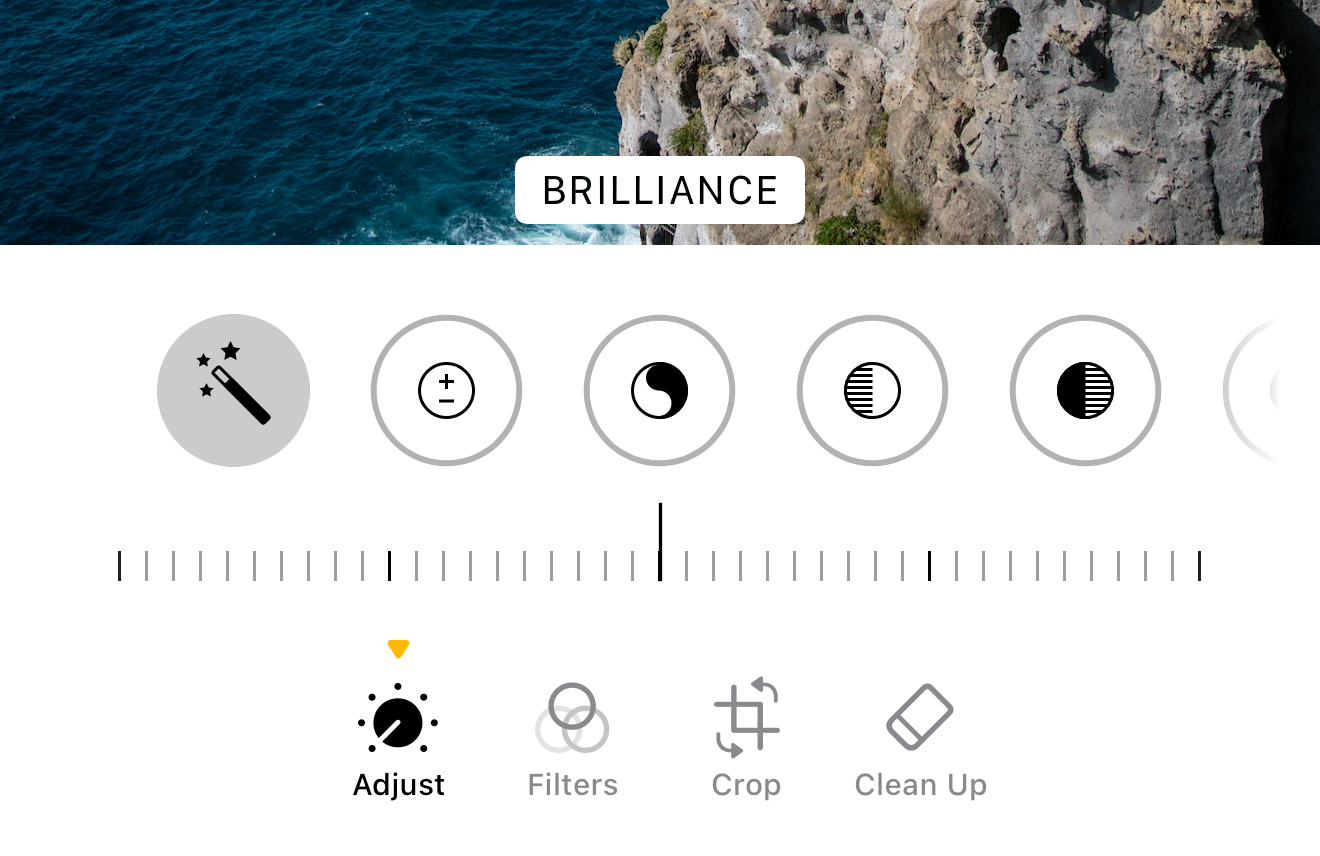
- Tap the Edit button.
- Tap Clean Up.
- Tap, brush over, or circle the object you want to remove.
- Use two fingers to zoom and move around the image if needed.
- Tap Done when you are finished.
After you tap Clean Up, some objects may be highlighted automatically. If the iPhone detects a possible distraction, you can tap the highlighted area to remove it.
If the object is not highlighted, brush over it or draw a circle around it. You do not need to trace the object perfectly. In many cases, a loose circle or brush stroke is enough.
What Clean Up does after you select an object
When you select something to remove, Clean Up analyzes the surrounding area and replaces the selected object with generated background detail.
For example:
- if you remove a person from a beach photo, it may fill the area with sand, water, or sky
- if you remove a sign from a wall, it may fill the area with wall texture
- if you remove a water bottle from a table, it may try to rebuild the table surface
The result depends on the photo. Clean Up usually works better when there is a clear background pattern and worse when the object overlaps faces, hands, text, detailed clothing, or complex edges.
Tips for better results
Clean Up can produce better edits if you make smaller, more controlled selections.
Try these tips:
- remove one object at a time
- zoom in before brushing over small items
- brush slightly inside the object instead of far outside it
- avoid selecting too much background around the object
- repeat the edit if the first result looks uneven
- use the original photo if multiple edits start to look unnatural
For a small object, tapping or circling can work well. For a long object, such as a cable or pole, brushing along the object may be easier.
If the result looks strange, undo the edit and try selecting a smaller area.
Best photos to use Clean Up on
Clean Up works best on images with simple backgrounds.
Good examples include:
- a person walking in the distance behind your subject
- a garbage can near the edge of a photo
- a small sign on a wall
- a mark on pavement
- a cable on a desk
- a small reflection in a window
- a distraction in the sky or on grass
These edits give the iPhone enough nearby background to rebuild the missing area.
Photos that may not work as well
Clean Up is less reliable when the background is complicated or the object overlaps important details.
Harder examples include:
- removing someone standing directly in front of another person
- removing objects from hair, hands, or faces
- removing large objects that cover much of the image
- removing text from a detailed sign
- removing objects from patterned clothing
- removing items from mirrors or complex reflections
- removing something from a crowded scene
In those cases, the edited area can look blurry, warped, repeated, or inconsistent with the rest of the photo.
What happens if you brush over a face?
Apple notes that if you brush over a person's face, the face may become blurred with a pixelated effect.
This means Clean Up may treat faces differently from other objects. If you want to remove a person from the background, try selecting the whole person rather than brushing only over the face.
If the person is close to the camera or overlaps the main subject, the result may not look natural.
Can you erase objects from old photos?
Yes, Clean Up can work on older photos in your Photos library as long as you are editing on a supported iPhone with Apple Intelligence available.
The photo does not need to be taken on the same iPhone. You can try Clean Up on:
- older iPhone photos
- screenshots
- images saved from Messages
- photos imported from another camera
- images synced through iCloud Photos
The quality of the result depends more on the image itself than on where it came from.
Does Clean Up change the original photo?
Photos edits on iPhone are generally non-destructive. That means the Photos app keeps the original image data and lets you revert edits later.
After using Clean Up, you can usually go back to the photo, tap Edit, and use the revert option if you want to return to the original version.
If you plan to make several edits or want to compare versions, duplicate the photo first:
- Open the photo.
- Tap the More button.
- Choose Duplicate.
- Edit the duplicate.
This gives you a separate copy to work on while keeping the original easy to find.
Clean Up versus cropping
Sometimes cropping is a better option than object removal.
Use crop when:
- the distraction is near the edge of the image
- cropping does not cut off the main subject
- the background is too complex for Clean Up
- you want the most natural result
Use Clean Up when:
- cropping would remove too much of the image
- the object is small
- the object is separate from the subject
- the background is simple enough to fill in
For many photos, the best approach is to crop first, then use Clean Up for smaller distractions that remain.
Clean Up versus third-party editing apps
Clean Up is convenient because it is built into Photos. You do not need to install another app, upload the image elsewhere, or learn a separate editing workflow.
Third-party apps may still be better for more complex edits. Dedicated photo editors can offer:
- more precise selection tools
- layers
- clone tools
- healing brushes
- manual background repair
- better control over texture and edges
For quick everyday fixes, Clean Up is usually the simplest place to start. For important images, professional work, or detailed edits, a dedicated editor may produce a cleaner result.
What to do if Clean Up is missing
If you do not see Clean Up in Photos, check:
- Your iPhone model: Clean Up needs an Apple Intelligence-compatible iPhone.
- Your iOS version: Update to iOS 18.1 or later.
- Apple Intelligence: Make sure Apple Intelligence is turned on.
- Language and region: Clean Up is not available in all languages or regions.
- China mainland restrictions: Apple says Clean Up will not currently work for devices purchased in China mainland. It also may not work in China mainland on supported devices purchased outside China mainland if the Apple Account country or region is also China mainland.
If your phone is supported and the feature is still missing, update iOS and restart the device.
Quick answer
To erase objects from images on iPhone, open the photo in the Photos app, tap Edit, tap Clean Up, then tap, brush, or circle the object you want to remove. Tap Done when finished.
Clean Up works best on small distractions with simple backgrounds. It requires an Apple Intelligence-compatible iPhone, such as an iPhone 16 model, iPhone 15 Pro, iPhone 15 Pro Max, or newer supported iPhone.
Sources: