
How to Take a Screenshot on Samsung Galaxy S20–S25 (All Models & Sub-Models)
Whether you’re saving a shipping label, capturing a payment confirmation, or keeping a copy of a conversation, screenshots are one of the most useful everyday tools on a Galaxy phone. The best part: Samsung keeps screenshot options very consistent across the Galaxy S20, S21, S22, S23, S24, and S25 families (including Plus, Ultra, and FE variants). That means once you learn the methods below, you can use them on basically any phone in this range.
Galaxy S20–S25 models covered in this guide
Here’s the full lineup this post covers:
- Galaxy S20
- Galaxy S20 5G
- Galaxy S20+
- Galaxy S20+ 5G
- Galaxy S20 Ultra
- Galaxy S20 Ultra 5G
- Galaxy S20 FE
- Galaxy S20 FE 5G
- Galaxy S21
- Galaxy S21+
- Galaxy S21 Ultra
- Galaxy S21 FE
- Galaxy S22
- Galaxy S22+
- Galaxy S22 Ultra
- Galaxy S23
- Galaxy S23+
- Galaxy S23 Ultra
- Galaxy S23 FE
- Galaxy S24
- Galaxy S24+
- Galaxy S24 Ultra
- Galaxy S24 FE
- Galaxy S25
- Galaxy S25+
- Galaxy S25 Ultra
- Galaxy S25 FE
The fastest method on every Galaxy S20–S25: buttons
On Samsung Galaxy devices, the most common screenshot method is the same across this whole range:
- Open whatever you want to capture.
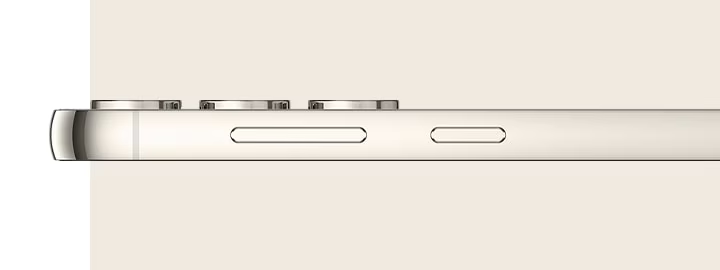
- Press the Side (Power) button and Volume Down button at the same time.
- Release quickly (don’t hold too long).
- Your screen will flash, and the screenshot saves automatically.
If you’re having trouble, it’s usually timing. You want a quick press-and-release, not a long hold. If you press too slowly (one button before the other), the phone may register it as a volume change or lock action instead of a screenshot.
Palm swipe gesture (great when buttons are annoying)
Samsung also offers a gesture screenshot called Palm swipe to capture. You swipe the edge of your hand across the screen (left-to-right or right-to-left) and it captures the screen.
To enable it (wording can vary slightly by One UI version):
- Open Settings
- Tap Advanced features
- Tap Motions and gestures
- Turn on Palm swipe to capture
If palm swipe feels inconsistent, try these quick fixes:
- Use the edge of your palm (pinky-side) and keep contact with the display
- Swipe in one steady motion across the screen (not diagonally)
- Avoid hovering above the display—light contact works best
- Check touch sensitivity if you’re using a thick screen protector
Palm swipe is especially useful on larger devices like Plus and Ultra models where reaching buttons one-handed can feel awkward.
Scrolling screenshots (capture a whole webpage or long chat)
Need more than what fits on one screen? Samsung’s Scroll capture (often shown as a down-arrow icon) extends your screenshot downward in steps.
How it works:
- Take a normal screenshot (buttons or palm swipe).
- A screenshot toolbar appears near the bottom of the screen.
- Tap the Scroll capture button (down arrows) to extend the screenshot.
- Keep tapping until you’ve captured everything you want.
This is perfect for:
- Receipts and order confirmations
- Long text messages or Slack conversations
- Web articles and instructions
- Shipping details and tracking pages
If you don’t see the toolbar after capturing, turn it on:
- Settings → Advanced features → Screenshots and screen recorder → Show toolbar after capturing
Hands-free screenshots with voice commands (Bixby or Google Assistant)
If your hands are full (cooking, working on a device, holding something), you can use voice commands:
- “Hey Bixby, take a screenshot”
- “Hey Google, take a screenshot”
This is a solid backup method when you don’t want to touch the phone, or when the buttons are hard to press (for example, with gloves or a slippery case).
Ultra models with S Pen: screenshot + markup in one move
If you’re using an Ultra model with S Pen support, Samsung gives you a convenient screenshot-and-annotate workflow using Air command.
Ultra models in this range that support S Pen features include:
- Galaxy S22 Ultra
- Galaxy S23 Ultra
- Galaxy S24 Ultra
- Galaxy S25 Ultra
A common flow is using Screen write (naming can vary slightly by One UI version):
- Pull out the S Pen.
- Open the Air command menu.
- Tap Screen write to capture the current screen and immediately write/draw on it before saving.
This is ideal when you want to circle a price, highlight an address, mark up instructions, or quickly point something out before sending the screenshot to someone else.
Where screenshots are saved (and how to find them fast)
By default, your screenshot is automatically saved to the Gallery app. To find it:
- Open Gallery
- Go to the Albums tab
- Open the Screenshots folder
You can also use the My Files app if you prefer browsing folders directly, and many phones will also surface screenshots inside Google Photos if you have it installed and syncing.
When screenshots don’t work (and it’s not your phone)
Sometimes screenshots won’t work on specific screens even though your phone is fine. Some apps block screenshots for privacy and security reasons. This is common in:
- Banking and finance apps
- Password managers
- Secure verification screens
- Certain streaming/video apps with protected content
If screenshots work everywhere else but not in one specific app, that app is likely restricting screenshots on purpose.
Best practice: learn two methods
For most people, the best setup is:
- Button screenshot for reliability and speed
- Scroll capture for long pages
- Palm swipe or voice as a backup when buttons are inconvenient
With those in your toolbox, you’ll be able to screenshot confidently on any Galaxy S20–S25 model, whether it’s a Galaxy S20 FE 5G, Galaxy S21 Ultra, Galaxy S23+, Galaxy S24 FE, or a Galaxy S25 Ultra.