
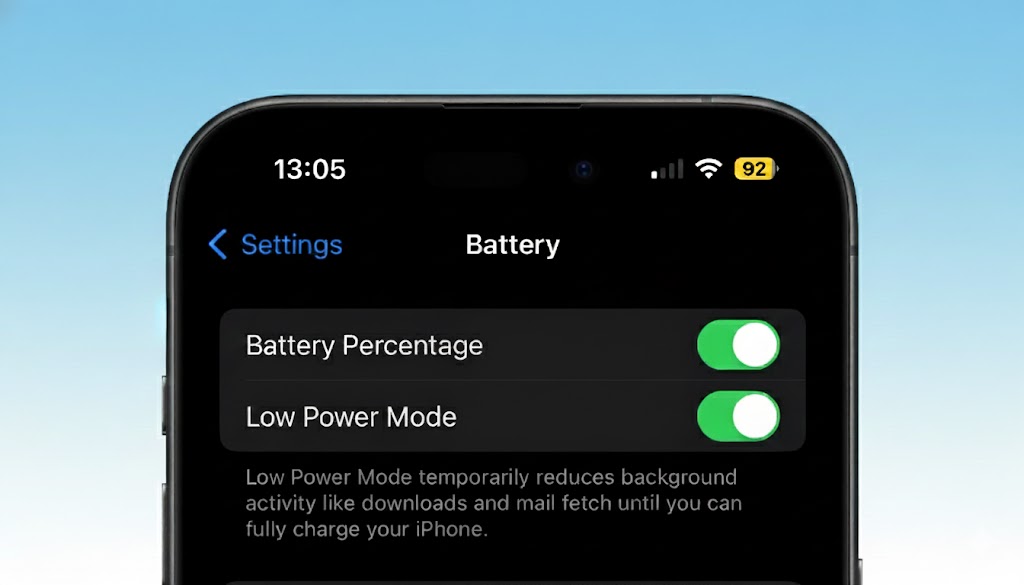
What Does Low Power Mode Do on an iPhone?
If you’ve ever been out for the day and watched your iPhone battery slide toward single digits, you’ve probably seen the suggestion to turn on Low Power Mode. It’s one of the quickest ways to squeeze more time out of your phone when you can’t get to a charger, but it works by quietly changing how iOS behaves in the background.
In this post, we’ll break down why someone would use Low Power Mode, exactly what changes when it’s enabled, and whether it’s smart to keep it on all the time.
Why someone would use Low Power Mode
Low Power Mode is designed for one thing: extending battery life when your iPhone is running low. It reduces power usage by scaling back features that are convenient, but not essential in the moment - especially things that happen in the background.
Here are the most common reasons people turn it on:
- You’re traveling, commuting, or out of the house and need your phone to last until you get home.
- You’re in a situation where your phone has to stay alive (navigation, rideshare pickup, emergency contact, work calls).
- You’re using a battery-heavy app (camera, maps, hotspot, video calls) and want to reduce other “hidden” battery drains at the same time.
- Your iPhone battery has aged and doesn’t hold a charge like it used to, so you’re using Low Power Mode more often to get through the day.
When Low Power Mode is on, your battery icon turns yellow, as a quick visual confirmation that it’s active.
What changes on your iPhone when Low Power Mode is on
Low Power Mode doesn’t just “magically” create extra battery capacity — it saves energy by reducing or disabling specific features. Apple lists the major ones, and they’re worth knowing because they directly affect how your iPhone feels day-to-day.
The main features that get reduced or turned off
- 5G behavior changes: On many iPhone models, 5G is reduced or turned off in Low Power Mode to save power. On some models, 5G can still be used for certain tasks like video streaming and large downloads, but Low Power Mode generally reduces 5G use.
- Auto-Lock gets more aggressive: Your iPhone will default Auto-Lock to 30 seconds, meaning the screen turns off faster when you’re not actively using it.
- Display brightness is reduced: The screen dims to cut power usage (the display is one of the biggest battery drains on any smartphone).
- Display refresh rate may be limited: If you have an iPhone with ProMotion (high refresh rate), Low Power Mode limits it to 60 frames per second, which can make scrolling and animations feel less “buttery.”
- Some visual effects are turned off: iOS reduces certain animations and effects to lower power draw.
- Background App Refresh is turned off: Apps won’t refresh content in the background as often (or at all), which saves battery but can delay updates until you open the app.
- Email fetch is turned off: If your mail setup relies on Fetch, it won’t check as often in the background, so new emails may not appear until you open the Mail app or refresh manually.
- Automatic downloads are turned off: Background downloads (like app updates or other automatic content) are paused to reduce background activity.
- iCloud Photos is temporarily paused: Photo syncing can slow down or pause while Low Power Mode is enabled, then resume later.
- Some Siri behavior may be reduced: Low Power Mode can reduce features like “Hey Siri,” along with background processes.
Performance can feel different
Low Power Mode can also make your iPhone feel slightly slower in some situations. In practice, that usually means iOS is prioritizing battery efficiency over peak responsiveness, especially for background work and non-essential tasks.
That said, the basics stay reliable: calls, texts, and everyday app use still work — you’re just trading some “always-updating” convenience for extra battery time.
When does Low Power Mode turn off?
By default, Low Power Mode automatically turns off once your iPhone charges back to 80% or higher.
Depending on your iPhone model and iOS version, you may also see power-related features that can automatically suggest or enable Low Power Mode at certain battery levels (for example, when your battery drops low).
Is it worth using Low Power Mode all the time?
A lot of people ask this because Low Power Mode is simple and it works. But “always on” is usually not the best way to use it, mainly because it comes with constant tradeoffs.
When it makes sense to use it frequently
Using Low Power Mode often can be reasonable if:
- You’re regularly away from chargers and just want the most predictable battery life.
- You’re traveling, hiking, or using navigation for long periods.
- You’re on an older iPhone and you’re trying to stretch usable time without replacing the battery immediately.
- You’re in a workday scenario where your phone needs to last until late evening.
Why “always on” can be an annoying Low Power Mode strategy
Keeping Low Power Mode on 24/7 can get frustrating because:
- Your screen may feel less responsive (especially on ProMotion iPhones capped at 60 fps).
- Background updates won’t happen normally, so apps may feel like they “catch up” only when you open them (social apps, news, email, cloud photo syncing).
- Automatic downloads and iCloud Photos syncing may pause at inconvenient times, which can be annoying if you rely on that stuff happening quietly in the background.
A practical rule of thumb
- If your battery is healthy and you’re just trying to get through a long day: use Low Power Mode in limited scenarios (travel days, long commutes, events, heavy camera use).
- If you feel like you “need” it daily just to make it to dinner: it’s worth checking Battery Health, because your iPhone may be telling you something important.
If you’re using Low Power Mode constantly, check Battery Health
If Low Power Mode has turned into a daily survival tool, take 30 seconds to check your battery’s condition. Apple provides a built-in Battery Health screen that shows your battery’s maximum capacity and peak performance capability.
How to check Battery Health on iPhone
- Go to Settings
- Tap Battery
- Tap Battery Health & Charging
From there, look at:
- Maximum capacity (how much charge your battery can hold compared to when it was new)
- Peak performance capability messaging (whether iOS is managing performance due to battery aging)
If your capacity is significantly reduced (or iOS indicates your battery needs service), replacing the battery can make a bigger difference than leaving Low Power Mode on all the time — and it brings back the normal “full speed” iPhone experience.
Final thoughts
Low Power Mode is one of the best “one-tap” battery tools on iPhone because it targets the sneaky drains: background refresh, downloads, email fetching, certain visuals, and (often) 5G. It’s perfect for travel days, emergencies, long commutes, or any time you need your iPhone to last longer than usual.
But if you’re relying on it constantly, that’s a good sign to check Battery Health. The best long-term fix is usually improving the underlying battery situation, not permanently running your iPhone in “battery saving mode.”