
What is changing in iOS 27?
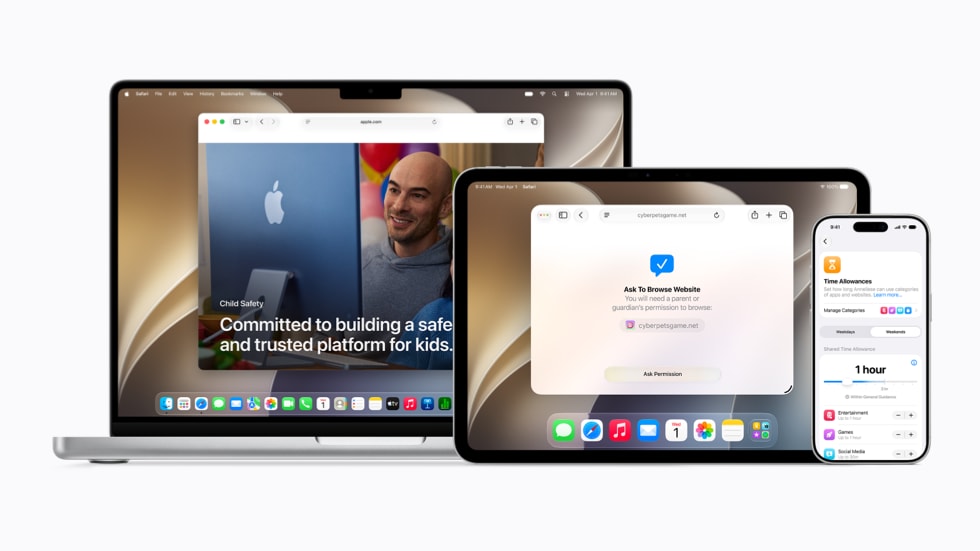
Apple is expanding its parental controls in iOS 27 with new tools for choosing which apps a child can use, approving websites and contacts, managing time by app category, and responding to sensitive images and videos.
The main additions are:
- app selection during setup
- Ask to Browse for approving new websites
- approval before a child communicates with a new contact
- expanded Communication Safety for violent or graphic content
- Time Allowances for broad app categories
- Schedules for different times and days
- a redesigned Screen Time dashboard
Existing controls such as Ask to Buy, Downtime, App Limits, Communication Limits, Content & Privacy Restrictions and Screen Distance remain available.
Apple says the features will arrive after installing the Screen Time update in iOS 27, iPadOS 27 and macOS 27. They are currently described as fall 2026 features and remain subject to change before release.
New and existing controls at a glance
| Control | Status in iOS 27 | What it does |
|---|---|---|
| App selection during setup | New | Starts a child's device with essential apps, a recommended set or a custom selection. |
| Ask to Browse | New | Requires approval before a child opens a new website. |
| New-contact approval | New | Lets parents approve a new contact before communication begins. |
| Communication Safety | Expanded | Adds interventions for gore or violence to existing nudity detection. |
| Time Allowances | New | Sets daily time across categories such as Entertainment, Games and Social Media. |
| Schedules | New | Changes which apps are available at different times or on different days. |
| Screen Time dashboard | Redesigned | Shows average use and common apps with direct access controls. |
| Ask to Buy | Existing | Requires approval for app downloads and in-app purchases. |
| Downtime and App Limits | Existing | Restricts device or app use by time. |
| Content & Privacy Restrictions | Existing | Controls content ratings, purchases, websites and settings changes. |
The new tools add more structured setup and more flexible schedules. They do not replace the rest of Screen Time.
A child account is the starting point
The controls work best when the child uses their own Apple Account inside a Family Sharing group. The birth date attached to that account lets Apple apply age-based protections and suggest settings.
Apple says a child account is required for children under 13 and can be used for children up to age 18. Minimum ages and legal requirements can vary by country or region.
A child account can support age-based App Store restrictions, website limits, media ratings, Ask to Buy, Communication Safety and remote Screen Time management. Using a parent's Apple Account on the child's phone can mix photos, messages, passwords and purchases, while also removing much of the age-based setup.
Choosing apps during initial setup
During Setup Assistant, iOS 27 lets parents decide which built-in apps are initially available. They can choose a small group of essential apps, use Apple's recommended set or make a custom selection.
This allows a new device to begin with fewer apps. Additional apps can be approved through Ask to Buy or added later in Screen Time.
Turning off a built-in app generally hides it rather than deleting it. For an existing device, similar control remains available through Settings > Screen Time > [child's name] > Content & Privacy Restrictions > Allowed Apps & Features. Final menu wording may differ slightly when iOS 27 is released.
How Ask to Browse works
Ask to Browse adds a parent request before a child visits a website that has not already been approved. The request appears in Messages with the domain and a preview, allowing the parent to approve or decline it.
Apple says it works in Safari and other browsers using Apple's WebKit engine on iOS 27, iPadOS 27 and macOS 27. When it is enabled, a child's Apple Watch or Apple Vision Pro displays approved websites only.
This differs from the existing adult-content filter. A filter tries to identify and block certain material. Ask to Browse starts from an approved set and provides a request process for new sites.
It may be useful for a younger child's first device. It can be more restrictive for an older child because ordinary websites may open links, sign-in pages or media from several domains. Parents can still use existing controls to allow unrestricted access, limit adult websites, block specific URLs or allow selected websites only.
An approval applies to the website, not every piece of content that may later appear there. Social networks, forums and video platforms can change continuously.
Approval for new contacts
iOS 27 lets parents require approval before a child communicates with someone new. Apple says the feature is supported across iPhone, iPad and Mac, with requests handled through Messages.
This extends Communication Limits, which already controls who a child can reach through Phone, FaceTime, Messages and supported apps during regular use or Downtime.
Contact approval does not give parents a copy of every conversation. It controls whether communication with a new person can begin.
Third-party apps can add the same type of request using Apple's PermissionKit framework. Support inside a social, messaging or gaming app therefore depends on its developer. Approval in Apple's Contacts app does not automatically control every username or friend request inside every third-party service.
Communication Safety now covers violence and gore
Communication Safety already detects possible nudity in supported photos and videos, blurs the content and gives the child guidance before viewing or sending it. Apple says the analysis happens on the device and that Apple does not access the image or video.
In iOS 27, the system also intervenes before children see gore or violent material detected in shared images and videos. Apple's examples include Messages and FaceTime, with support also possible in third-party apps that use its SensitiveContentAnalysis framework.
Communication Safety is turned on by default for users under 18, according to Apple's announcement. Regional age rules can differ.
The feature can blur or interrupt supported visual content, explain that the child does not have to continue, provide safety guidance and offer a way to contact a trusted adult. It does not show parents every image or guarantee that all unsuitable content will be detected.
Time Allowances and Schedules
Time Allowances manage daily use across categories such as Entertainment, Games and Social Media. Apple provides suggested starting points based on the child's age and guidance from clinical and child-development experts, but parents can change those suggestions.
Schedules determine which apps are available at different times or on different days. A family could create:
- school hours with classroom and communication apps
- an after-school period with homework and transit apps
- evening access to games or entertainment
- bedtime access to Phone, Messages and selected reading apps
- different weekday and weekend settings
This is more flexible than one Downtime window. Parents should still review how apps are categorized. An educational video app may appear under Entertainment, while messaging inside a game may remain part of Games.
Known emergency numbers identified by the cellular carrier remain reachable regardless of Communication Limits.
The redesigned Screen Time dashboard
Screen Time in iOS 27 presents average use, most-used apps, limits and schedules in one dashboard. Apple's preview shows direct actions such as Pause Device Use, Allow Unlimited Use and Change Schedule.
Parents can temporarily restrict access during a meal or activity, or extend access when a child needs more time to finish something.
Screen Time reports can include app and website activity, pickups and notification counts. They show device activity, not the reason an app was used. Browser time could represent homework, entertainment or both.
Downtime, App Limits and Always Allowed remain available. Families with an existing configuration should review the dashboard after updating to confirm how current limits work with the new Time Allowances and Schedules.
Ask to Buy and content restrictions remain separate
Ask to Buy covers App Store downloads and purchases. Ask to Browse covers websites. New-contact approval covers communication. Approving one request does not approve the others.
Content & Privacy Restrictions continue to control:
- App Store purchases and app installation
- app, movie, television, book and music ratings
- built-in apps and features
- website restrictions
- Apple Intelligence and Siri features
- account, passcode, cellular and privacy-setting changes
A time allowance controls duration, while a content rating controls which apps or media can be used.
Parents should also set a separate Screen Time passcode. Apple can notify the family organizer when that code is entered on the child's device. Passcode recovery should use the parent's Apple Account.
Which iPhones support the new controls?
Apple lists iOS 27 support for:
- iPhone 17 series and iPhone Air
- iPhone 16, 15, 14, 13, 12 and 11 series
- iPhone SE (2nd generation and later)
The parental controls are not listed as requiring Apple Intelligence. An iPhone 11 can therefore receive the iOS 27 Screen Time tools even though it cannot run Apple Intelligence.
The parent and child devices should both be updated. Apple recommends updating all devices in the Family Sharing group before changing Screen Time so settings synchronize correctly.
Ask to Browse also extends to iPadOS 27 and macOS 27. New-contact approval is supported on iPhone, iPad and Mac. Exact availability can vary by region, device and software version.
How to prepare
Families can prepare without installing beta software:
- Give each child a separate Apple Account with the correct birth date.
- Add the child to Family Sharing.
- Turn on Screen Time and App & Website Activity.
- Create a separate Screen Time passcode.
- Review Downtime, App Limits and Always Allowed.
- Check Communication Limits and Communication Safety.
- Review App Store, media and web restrictions.
- Update the parent and child devices when stable iOS 27 becomes available.
- Review Time Allowances, Schedules and Ask to Browse after the Screen Time update is installed.
Installing a beta on a child's main phone is unnecessary for planning. Preview software can contain bugs, and Apple says these features can change.
Limits and privacy
iOS 27 does not turn Screen Time into a record of every conversation or online action. It does not guarantee detection of all sensitive images, automatically cover contacts in every third-party app or prevent access from another unmanaged device.
Apple says Communication Safety analysis occurs on the device. Its Declared Age Range API can give an app an age range rather than the child's exact birth date, while PermissionKit can provide a parental approval process for new in-app contacts.
Parents can see Screen Time activity and approval requests associated with the family controls. Children should be told which reports and restrictions are active.
Quick answer
iOS 27 adds app selection during setup, Ask to Browse, approval for new contacts, expanded Communication Safety, category-based Time Allowances, daily Schedules and a redesigned Screen Time dashboard.
The features work alongside Ask to Buy, Downtime, App Limits, Communication Limits and Content & Privacy Restrictions. They do not require an Apple Intelligence-capable phone: iOS 27 supports iPhone 11 and newer and iPhone SE (2nd generation and later).
Apple says the controls will be available after installing the Screen Time update in iOS 27, iPadOS 27 and macOS 27.
Sources: